 Any TV Screen Casting
Cast Meta Quest to Any TV Without Chromecast
Screen mirroring for Meta Quest 3, 3S, 2 and Pro: wirelessly cast what you see in your headset straight to your Smart TV over Wi-Fi. Let friends and family follow the action, watch your gameplay and enjoy VR together — no Chromecast, PC or phone required.
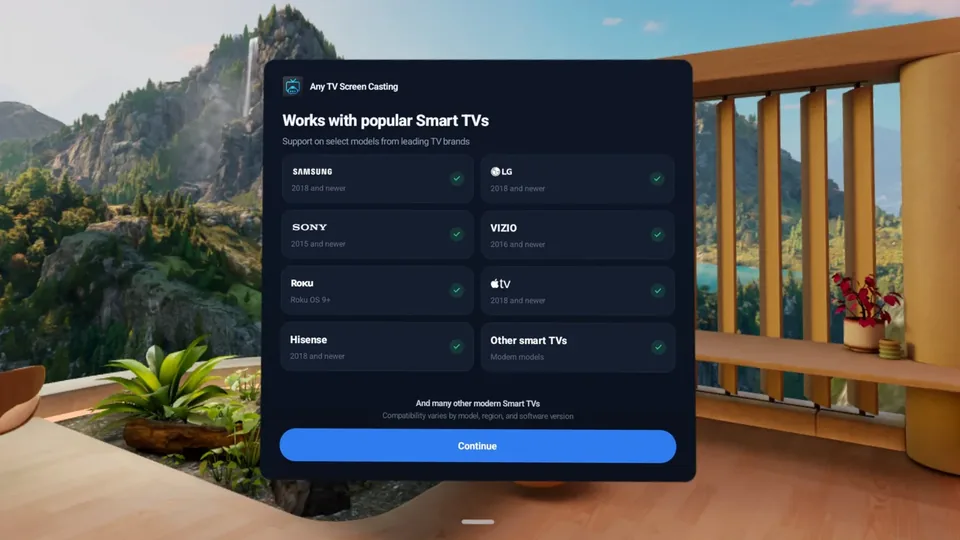
Works with popular Smart TVs & streaming devices
- Samsung 2018+
- LG 2018+
- Sony 2015+
- VIZIO 2016+
- TCL 2017+
- Hisense 2018+
- Philips 2015+
- Xiaomi 2018+
- Roku OS 9+
- Apple TV 2018+
- Chromecast & Google TV
And many other modern Smart TVs. Compatibility varies by model, region and software version.
Share the moment with everyone in the room
Whether you are gaming, exploring virtual worlds, exercising or showing someone VR for the first time.
Fast Wireless Mirroring
Your full headset view streams to the TV in real time over Wi-Fi, using the Quest's hardware video encoder.
Automatic TV Discovery
Open the app and nearby TVs and streaming devices appear in the list. Pick yours and go.
Adjustable Quality
Choose 1080p for the sharpest picture, or 720p / 480p for a smoother stream on busy networks.
System Audio
Optionally send game and app audio to the TV so the room hears what you hear.
Keep Playing
Start casting, then jump into any game or app. The stream follows whatever you see in the headset.
No Extra Hardware
No dongle, PC, phone or account needed — just the headset, the TV and one Wi-Fi network.
Simple, headset-friendly controls
Big buttons, clear status and nothing to configure.
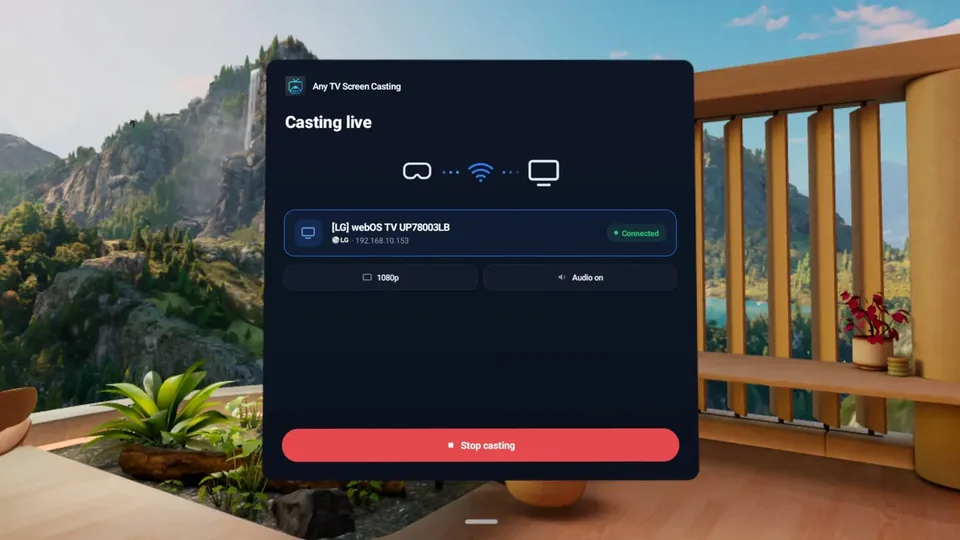
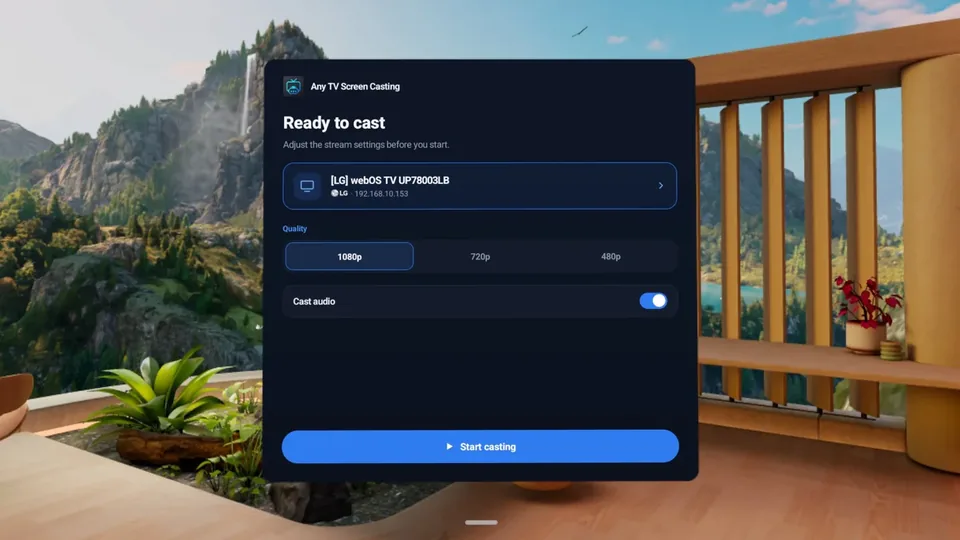
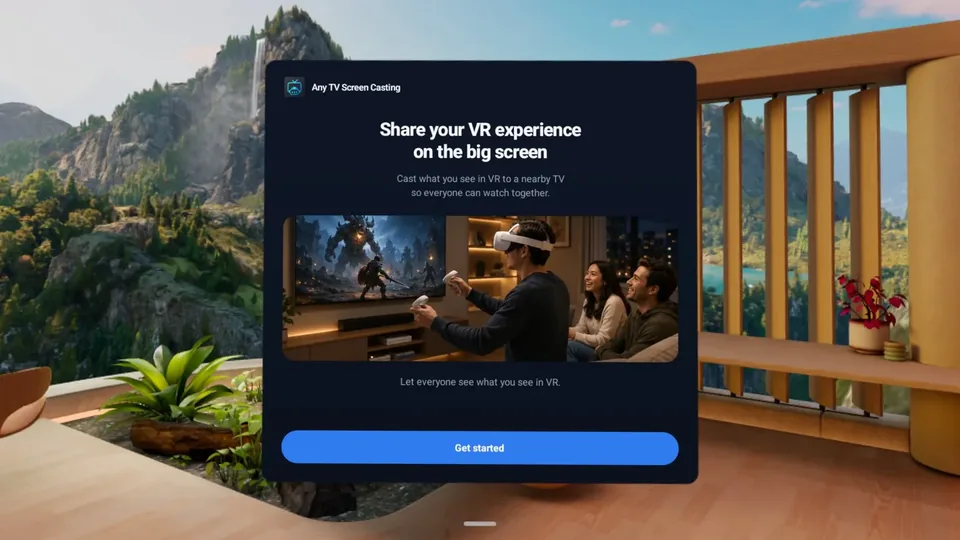
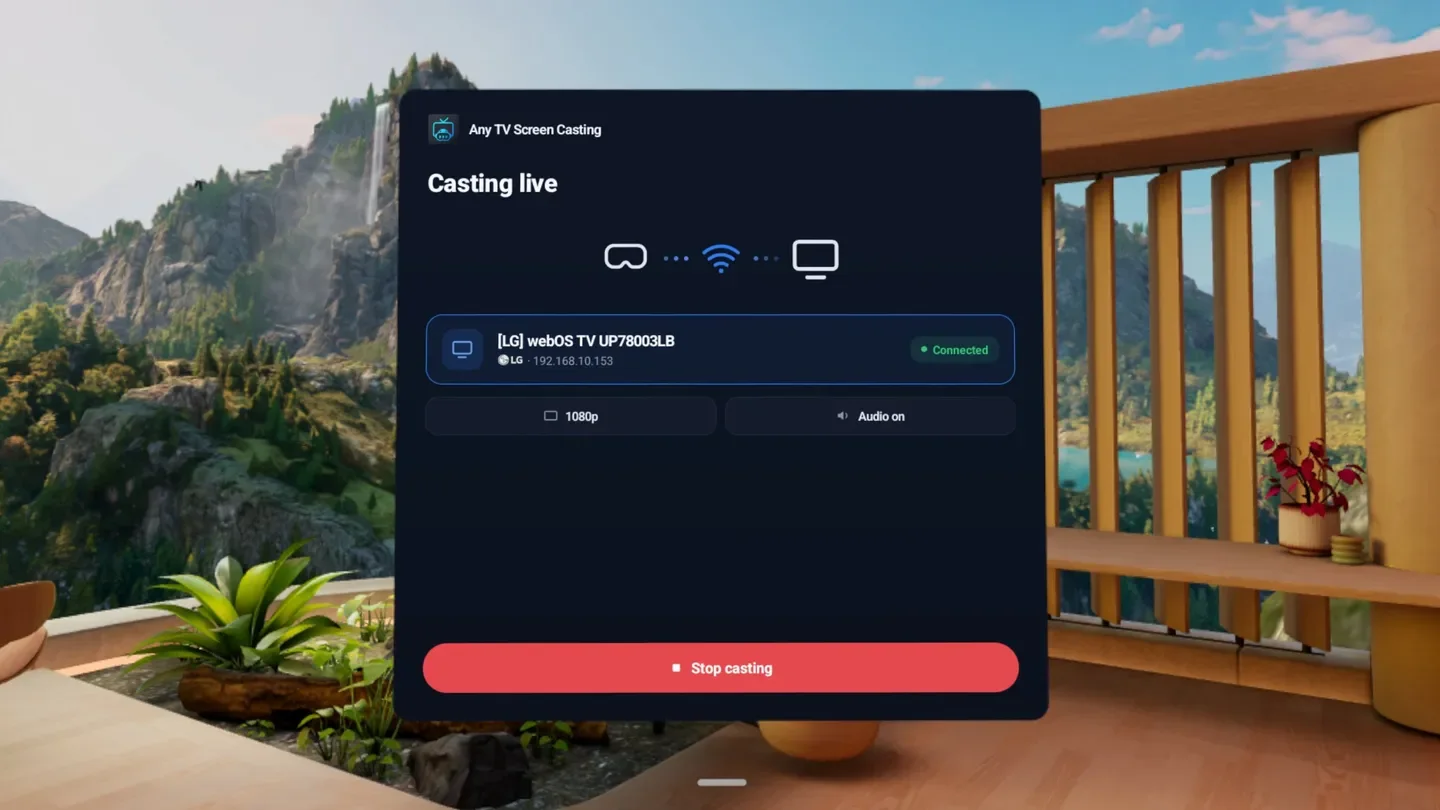
Casting in under a minute
No account, no cables, no setup on the TV.
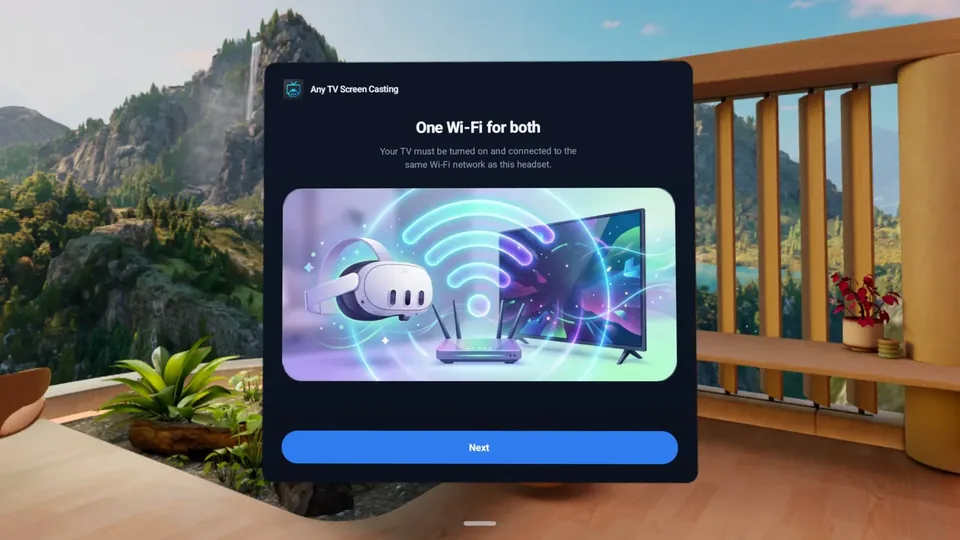
One Wi-Fi for both
Turn on the TV and make sure it is on the same Wi-Fi network as your headset.
Pick your TV
Open Any TV Screen Casting — nearby screens are discovered automatically. Select yours.
Start casting
Choose the quality, decide whether to send audio, and press Start casting.
Keep playing
Switch to any game or app while everyone watches on the big screen.
Free to try. Unlock unlimited casting when you are ready.
Download for free and try casting to your TV. Unlock the full version to cast without limits.
Get it on Meta Horizon StoreThe full version is an optional in-app purchase billed through the Meta Horizon Store. Requires a compatible Meta Quest headset and TV; performance depends on the TV model and your Wi-Fi network.
Frequently asked questions
Can I cast my Quest 3 to a TV without a Chromecast?
Yes. Any TV Screen Casting talks directly to the casting built into Samsung, LG, Sony, Roku, Apple TV and most other modern Smart TVs, so you do not need a Chromecast, a PC or the Meta phone app in between.
Which Meta Quest headsets are supported?
Any TV Screen Casting runs on Meta Quest 2, Meta Quest 3, Meta Quest 3S and Meta Quest Pro. Install it from the Meta Horizon Store.
Which TVs can I cast to?
Most modern Smart TVs and streaming devices, including Samsung (2018 and newer), LG (2018 and newer), Sony (2015 and newer), VIZIO (2016 and newer), TCL (2017 and newer), Hisense (2018 and newer), Philips (2015 and newer), Xiaomi (2018 and newer), Roku (Roku OS 9 and newer) and Apple TV (2018 and newer). Compatibility varies by model, region and software version.
Do I need extra hardware or an internet connection?
No. The headset streams directly to the TV over your local Wi-Fi network. No dongle, PC or phone is needed, and no internet connection is required for casting.
Is the app free?
The app is free to download and try. An optional in-app purchase through the Meta Horizon Store unlocks unlimited casting.
Can I keep playing while casting?
Yes. Start casting, then switch to any game or app. Everything you see in the headset keeps streaming to the TV until you stop casting.
My TV does not show up. What can I do?
Make sure the TV is turned on and connected to the same Wi-Fi network as the headset, and that screen mirroring (AirPlay or Google Cast) is enabled in the TV settings. Then search again. If the picture stutters, choose a lower quality such as 720p or 480p.
Bring your VR to the big screen
Download Any TV Screen Casting on your Meta Quest — free to try, ready in seconds.